Purchasing a high-quality monitor for work has become increasingly important as remote work reshapes our professional lives. Since working from home is now the new normal for many, your screen choice is one of the best upgrades you can make.
We’ve bought and tested over 380 monitors to understand what matters for productivity. Most computer monitors today range from 1080p to 4K resolution. 4K monitors are more commonplace now. Choosing the best computer monitors for work requires understanding your specific needs. We’ll walk you through what matters in the best monitors for work-from-home in this piece, explore top productivity monitor categories, and show you how to optimize your setup for increased efficiency.
What Actually Matters in a Work Monitor
Most people fixate on resolution and screen size when shopping for the best monitors for work, but eye comfort features separate monitors that improve productivity from those that cause fatigue. Hours spent in front of a screen strain your eyes and wear you down, which directly affects your work output. Eye-care monitors help prevent fatigue so you can stay focused without compromise.
Look for monitors with complete protection. Blue light emissions in the 415-455 nm band can damage the lens and retina, and may result in myopia and macular degeneration. Flicker-free technology eliminates invisible screen flickering caused by LED backlight cycles that try to maintain brightness. This onscreen flicker bombards your eyes with drastic brightness changes in milliseconds. Your pupils repeatedly expand and contract, which can cause eye fatigue, strain, and headaches.
A 24 to 27-inch screen strikes the ideal balance between screen space, desk depth, and healthy viewing distance for most users. Monitor resolution directly affects image clarity and workspace size. A screen size of 24-27 inches is optimal for most office tasks. Higher resolutions provide sharper text and images and reduce visual fatigue compared to lower resolution screens.
Ergonomic adjustability matters just as much. Choose computer monitors for work that offer full tilt, pivot, swivel, and height adjustment. This helps you achieve a natural viewing position. Poor posture while viewing screens takes a toll on your body when sitting during your workday.
Monitor Categories for Work Productivity
Different screen setups are needed for work demands. Understanding which category is important in the workflow saves both money and desk space. The majority of computer users will find that 27-inch monitors offer the correct size and price.
This size provides substantially more screen space than a 24-inch model but takes up less desk area than a 32-inch display. The best monitors for work in this category deliver 1440p resolution. This creates an all-purpose setup that costs less than alternatives priced at 4K or more.
Budget-conscious professionals can find excellent 24-inch options with surprising capabilities. For example, monitors like the BenQ GW2486TC include USB-C charging ports with 65W charging and adjustable stands with 100Hz refresh rates. These features rarely appear at this price point. They make smart choices for the best computer monitors for work without spending a premium.
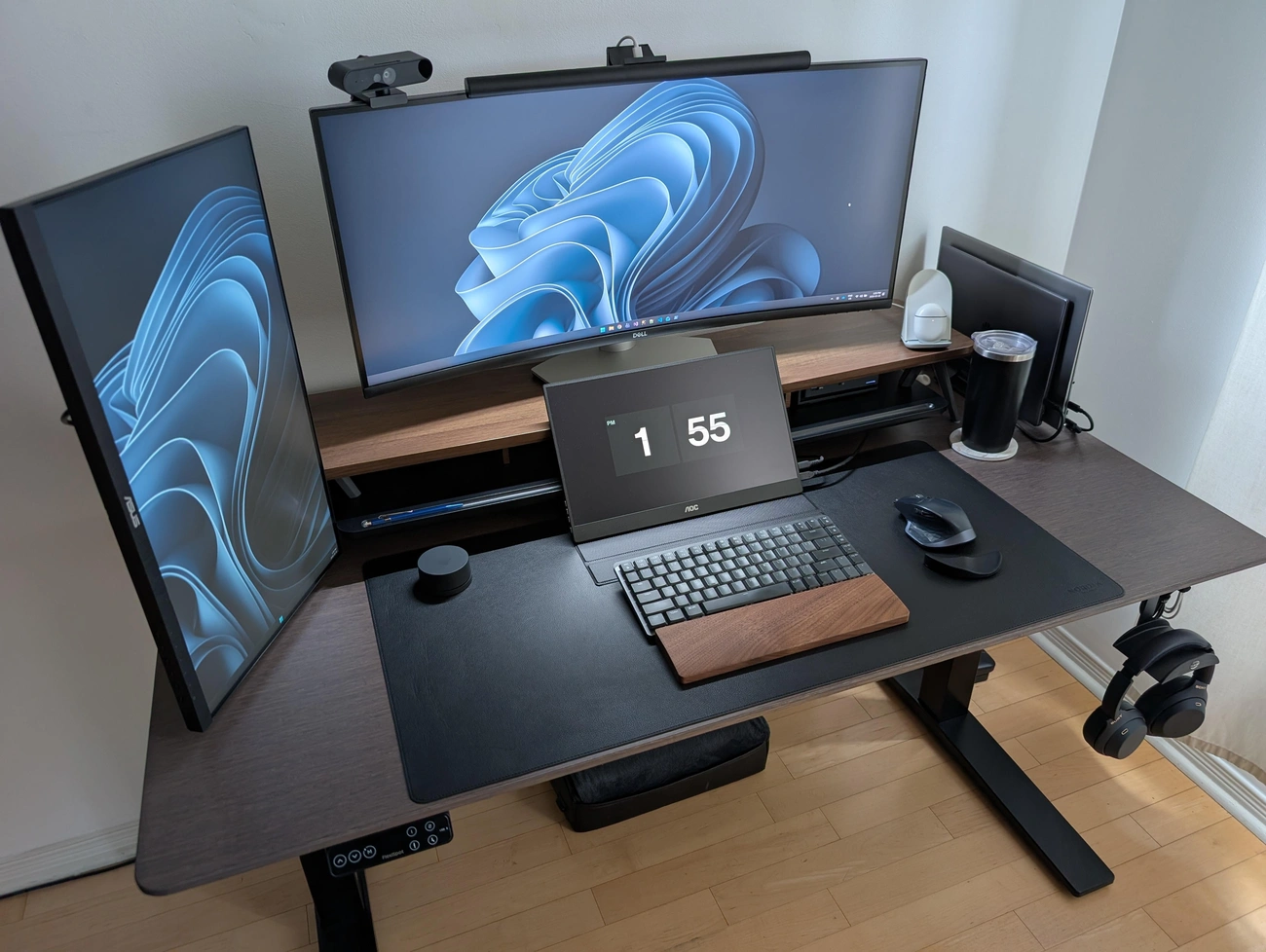
Ultrawide monitors are effective alternatives to a dual-monitor setup. The 34-inch-wide screen monitor can fit up to three windows side by side and still maintain readability. These setups provide unbroken horizontal space without display bezels blocking your view.
Studies show that going from one to two monitors can increase productivity by up to 42%, but ultrawides deliver similar benefits in a single unit. 4K monitors excel for data-heavy tasks. Moving from 1080p to 4K reveals dozens of columns and hundreds of spreadsheet rows without scrolling. This reduces analysis navigation time.
Setting Up Your Monitor for Maximum Productivity
Buying the best monitors for work is only half the battle; proper positioning determines whether your investment pays off. The screen’s top should sit at or slightly below eye level. Your eyes should look slightly downward when viewing the middle of the screen, around 15 degrees below the horizontal line. The screen needs to be at least 20 inches from your eyes, roughly an arm’s length away. Bifocal wearers should lower the best office monitor below eye level and tilt it back 30 to 45 degrees.
Clean up cable clutter. Unplug all devices and only use what is needed. Reusable ties can help with excess cable lengths. Adhesive squares let you mount your power strip under your desk, reducing visible cable clutter. Using color-coded ties will separate your phone, data, and audio cables. Label each cable end to identify what it connects to for easy unplugging and plugging back in.
Color-sensitive work requires you to fine-tune your display using a colorimeter (a device that measures and adjusts color accuracy) rather than relying on visual adjustments. Professional colorists recommend fine-tuning displays at least once a month.
Conclusion
The best monitors for work require more than chasing the highest resolution or largest screen. Eye comfort features and ergonomic adjustability matter just as much as technical specifications. We’ve found that matching your monitor category to your specific workflow delivers better results than buying the most expensive option. Set up your workspace correctly, and you’ll notice the difference in how much you get done within days of making the switch.
FAQs
Q1. What monitor size is best for productivity work? For most office tasks, a 24 to 27-inch monitor balances screen and desk space. This size offers ample workspace without demanding excessive desk area. It also maintains a comfortable viewing distance and reduces eye strain during long work sessions.
Q2. Are ultrawide monitors good for replacing dual monitor setups? Yes, ultrawide monitors can replace dual-monitor setups. A 34-inch ultrawide supports up to three windows side by side, providing unbroken horizontal workspace without bezel gaps. Studies indicate productivity can rise by up to 42% when moving from one to two monitors. Ultrawides offer similar benefits in one unit.
Q3. What eye care features should I look for in a work monitor? Look for monitors with blue light filtering technology to protect against harmful 415-455 nm wavelengths that can damage the lens and retina. Flicker-free technology is equally important, as it eliminates the invisible screen flickering from LED backlights that can cause eye fatigue, strain, and headaches during extended use.
Q4. How should I position my monitor for optimal ergonomics? Position your monitor so the top of the screen sits at or slightly below eye level, with your eyes looking approximately 15 degrees downward when viewing the middle of the screen. Place the monitor at least 20 inches away (roughly arm’s length). If you wear bifocals, lower the monitor and tilt it back 30 to 45 degrees.
Best Monitors for Work | Blog Article | Econo-Tech | All Rights Reserved | Farmingdale, NY 11735
Serving: Farmingdale, Hauppauge, Deer Park, Commack, Bethpage, Lindenhurst, Amityville areas.